Is it Possible to Shred files From My External USB Drive??
USB drive is something that has become an integral part of our lives, since their introduction by IBM at the start of this millennium. The fact that its size keeps decreasing with simultaneous increase in storage capacity, makes it the most preferred storage device in recent times, after the advent of the optical storage media. Let us now come to your question about shredding files from an external USB drive. Yes, it�s definitely possible. Not only is it possible to shred files from an external USB drive, but it is also possible to shred free space present on your external USB drive, with utmost ease. This is made possible by File Shredder, an ultimate software for shredding your files. Try it now! If you are looking for a tool to clear junk data from your PC then visit myfileshredder.com/how-to-clean-junk-from-pc.html.
Why shred, when you can delete?
This is the first question that comes to mind, when we talk about shredding. Many people are of the fallacy, that merely emptying the Recycle Bin gets rid of their data permanently. In fact, all the deleted data can be recovered without any loss, using the wide variety of software available in the market today. This brings us to the topic of shredding.
Shredding is completely different from deletion. While deletion just removes the reference to a file, and not the disk space, Shredding uses a simple technique of rewriting the disk space of the deleted items, by replacing the existing values with random values. This renders the data unreadable and makes it irrecoverable. This makes shredding a much sought after option, than just plain deletion.
File Shredder lets you shred files from your USB drive, using few simple and easy steps.
Once the software is launched, in your PC, it detects all the local and external drives, and lists them on the left tree pane of the Main window. You can select the USB drive from the list, to get a list of the files present on the USB drive.
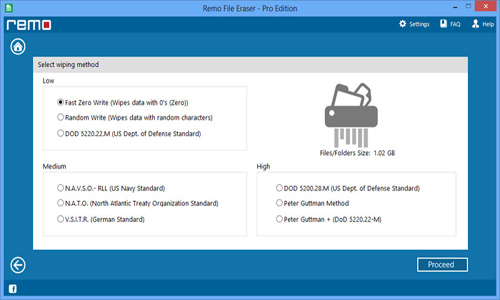
File Shredder software provides nine different shredding methods, based on different security standards approved by various government agencies like U.S. Police department, U.S. Department of Defense, and, standards approved by many other governments around the globe.This utility also facilities to erase file completely on Windows 8 at utmost ease. The software provides various other Shredding options, like Confirmations, passwords, scheduler, etc. The software also lets you shred free space, so that all your deleted files are also shredded completely. Moreover, it also allows user to shred hard disk data in just a few steps. Try it now!
Procedure to erase files from external USB drive:
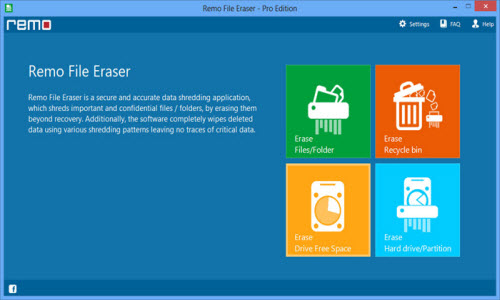
Step 1: Launch the software either by selecting the program from the Start Menu, or by double clicking on the desktop shortcut. Once the File Shredder software is launched, it starts loading the drives on the left tree pane. Choose Erase Hard Drive / Partition to shred files from external USB drive.
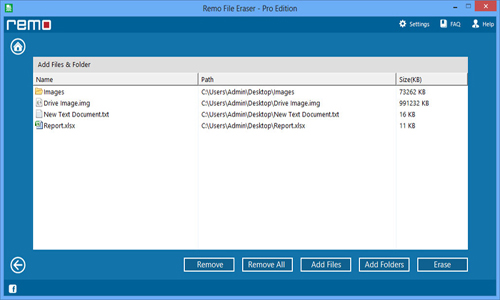
Step 2: All the contents of the drive are listed in the left pane of the main window. Select the USB drive that contains the files to be shredded. After selecting the files to be shredded, double click on them to add them into the ’shredding zone’ or drag and drop them into the shredding zone. The application adds the selected files into shredding zone as shown in Figure.
Step 3: File Shredder provides nine different shredding methods that the user can choose from. To select the shredding methods, click on the Shredding Options button in the toolbar. This drops down the different shredding methods, and the user has to select any one of these methods, as shown in Figure.
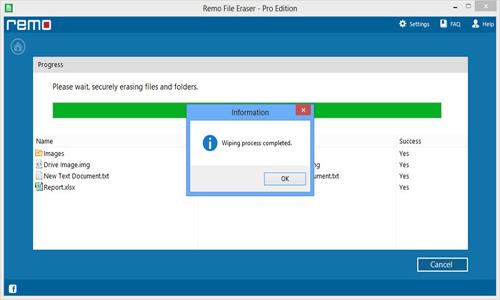
Step 4: Once you select the shredding method, click on the Shred files and folders button. The files in the shredding zone will be overwritten by different patterns depending on the shredding method selected. Once the process is completed, a message pops up intimating the same as shown in Figure.
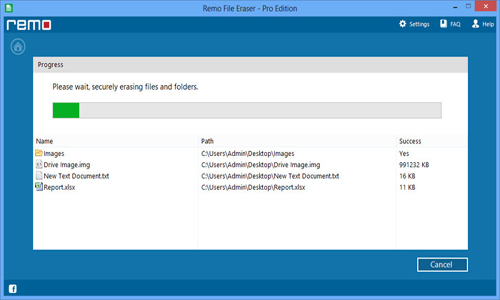
Step 5: Once done with file shredding process, a message would pop confirming the process completion as shown in Figure.