How to Shred Files on SD Card???
Secure Digital (SD) cards are flash memory cards, which facilitates huge data storing capacities. They are small, portable, platform independent, retains data without power and re-recordable. Suppose if you wish to sell your SD card to your friend, simple deletion or formatting the SD card will not erase its content permanently. If you want privacy of your data and do not want to risk the content of SD card, then it is very important to shred files completely before selling it.
Why deleting files or formatting is not enough?
When you delete files or format the SD card, the references to those files are deleted from the file allocation table. However, the files still remain on the card. The operating system marks the space occupied by the old files as available for new data. As there are no references to the files, they become inaccessible. These files remain on the SD card until it is overwritten by new information. However, these files can be recoverable even after many months or years if the SD card is not further used using good data recovery software. Therefore, deleting files or formatting the SD card is not enough to wipe the data completely from SD card.
How Shredding or data wiping works?
User can manually perform shredding by over writing the present data on the SD card by randomly typing the garbage data. But, this process consumes lot of time and there is a possibility of missing few things. Recommended way is to use third party utility software like File Shredder. It is the best file eraser tool, which will repeatedly overwrite the data present on the card with some random garbage value using different shredding patters, erasing the content of the card and delete files beyond recovery.
File Shredder tool provide nine different shredding patters to wipe the data permanently. Using 'Context menu integrated' option, you can shred files and folders anywhere from Windows and by using “Superior drive wiping option you can shred entire hard drive permanently. This is the best software to shred deleted files. Using this tool you can permanently erase your deleted files from your system, beyond recovery. Click on this link https://www.myfileshredder.com/deleted.html to find out an exact way to erase deleted files permanently.
Easy steps to Shred files from SD card:
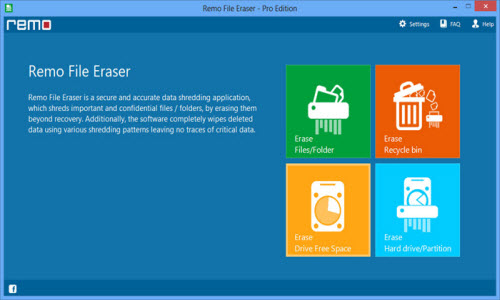
Step 1: Download and install the File Shredder software to your system. Connect the SD card to be shredded to the computer. Launch the program by double clicking the shortcut icon from the computers desktop. All the drives present on the system will be loaded on the left pane tree as in below figure.
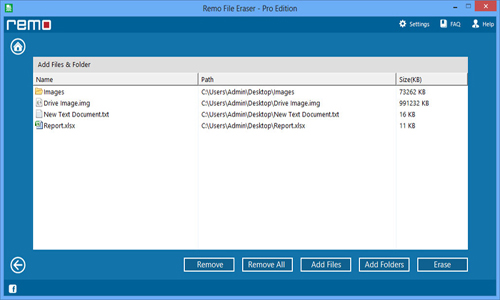
Step 2: Select the SD card. After selecting, the SD card all the files present on the SD card will be listed. Select the files and double click on that to add them into shredding zone. You can also drag and drop the files into the shredding zone as shown in figure
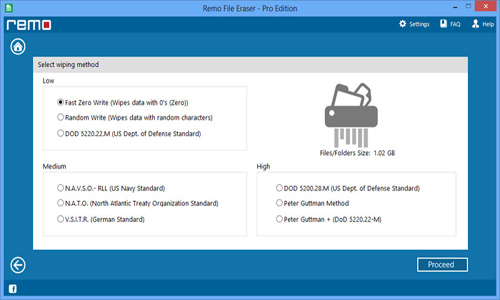
Step 3: This utility provides nine different shredding patters. To select the shredding or erasing patters, click on "Erasing Option" from the tool bar. Nine different methods will be displayed. Select any one shredding pattern and click "OK" as shown in figure.
Step 4: You can see the file shredding process in below figure.
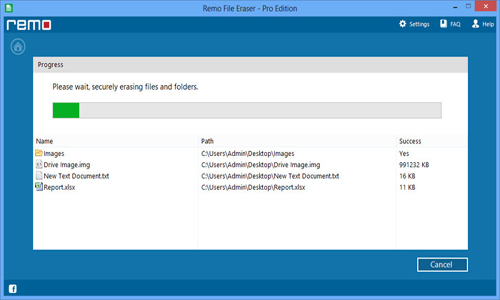
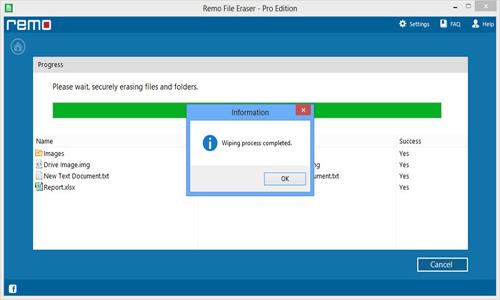
Step 5:Once you select the erasing pattern, click on “Erase file(s) and folder(s)” option from the tool bar. Shredding process will start based on the selected shredding pattern. After the successful completion of shredding process, a message would pop telling the same as in below Figure.